

Windows
Imagory.exe
- Runs on
- Windows 10 and 11, 64-bit
- Size
- about 50 MB
A single file. Double-click to run, nothing to install.
Download for Windowsv0.2.1Imagory 0.2 is out, now with a Linux build. Changelog
Browse your local photo folders and Google Takeout exports in one fast grid. Nothing is uploaded, and your photos are only ever read.
All releasesWindows 10 & 11 · Linux x86_64 · Free and open source · No account
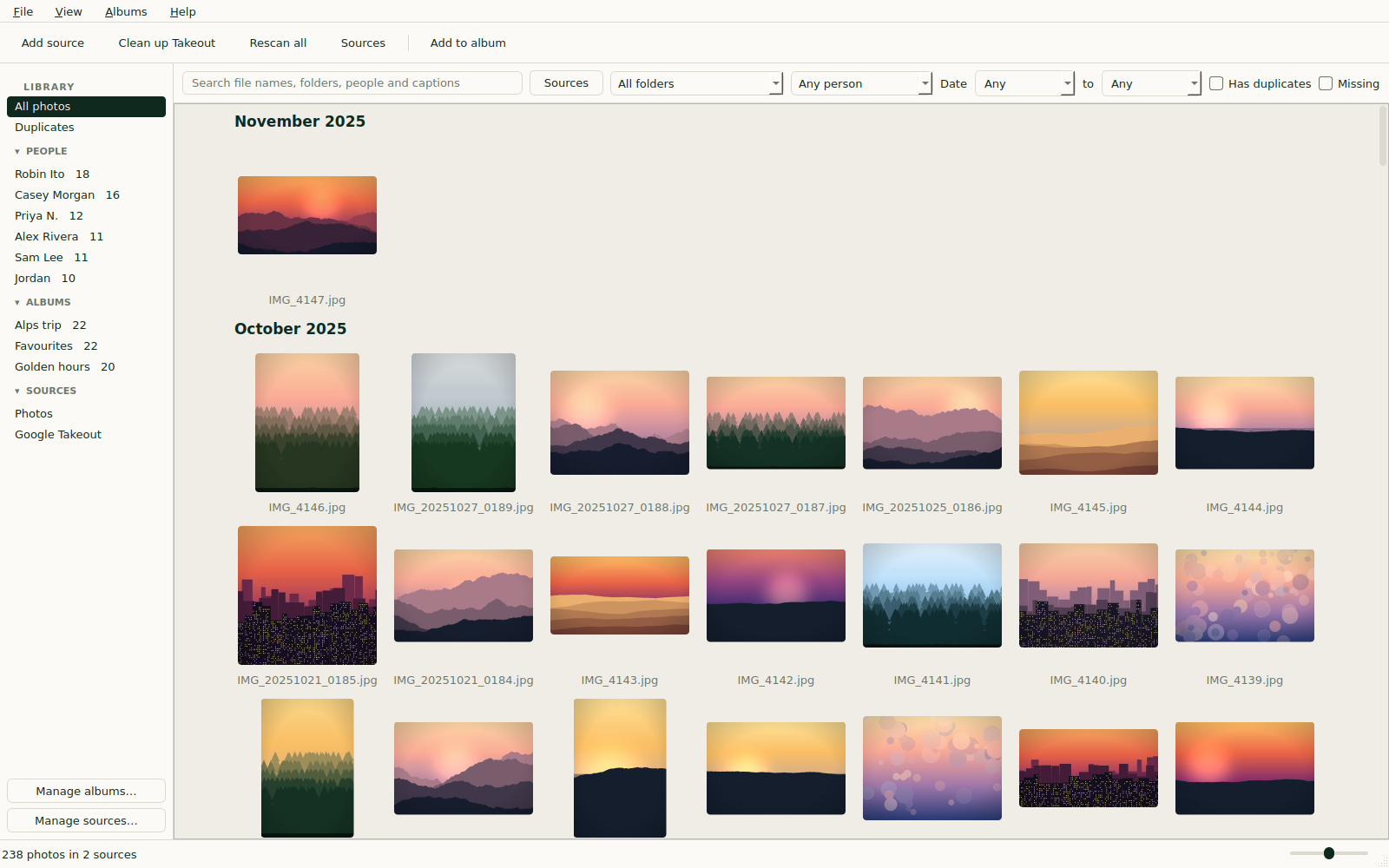
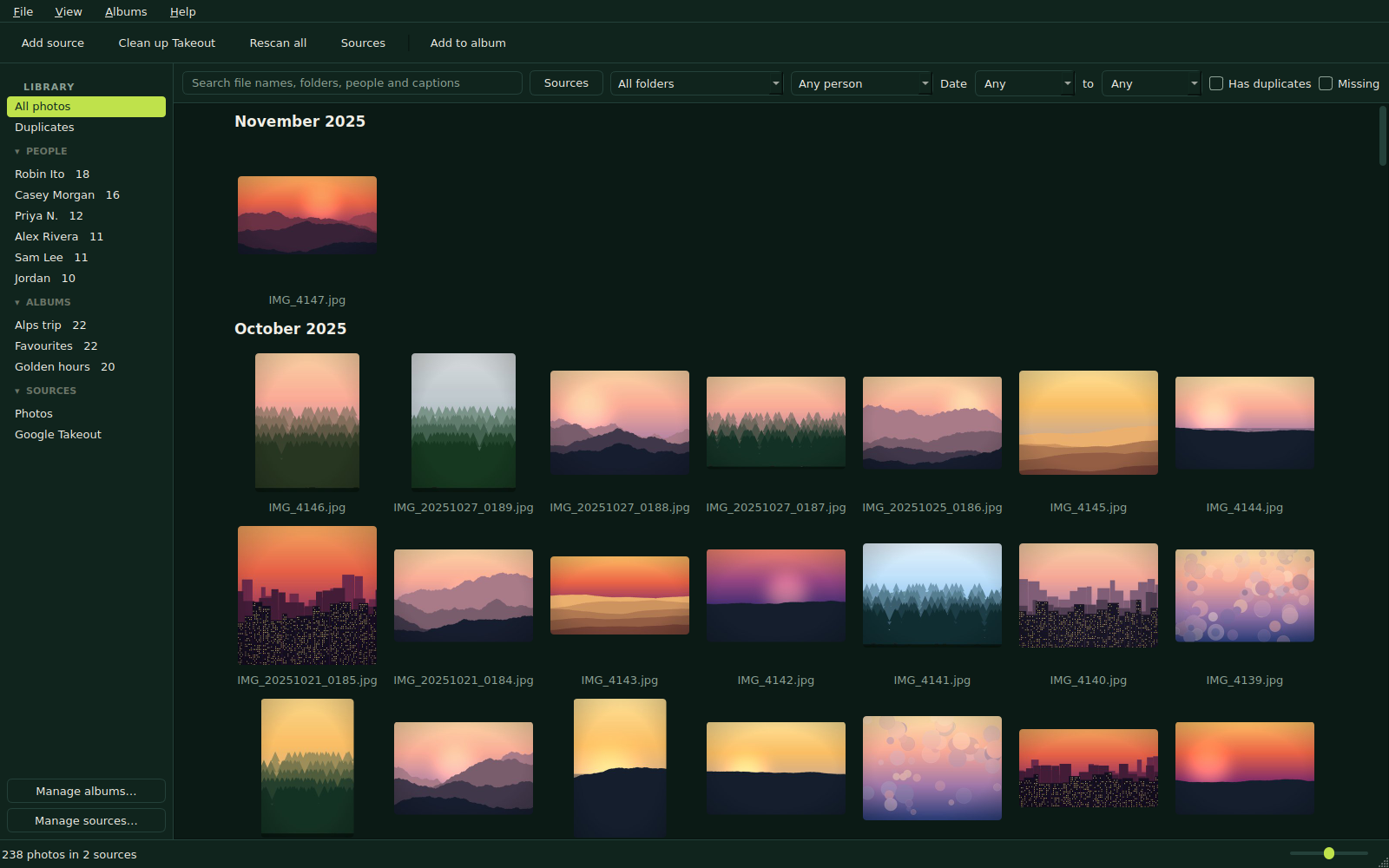
Imagory is a free, open source photo browser for Windows and Linux. It shows photo folders and Google Takeout exports in one fast grid, and it works fully offline.
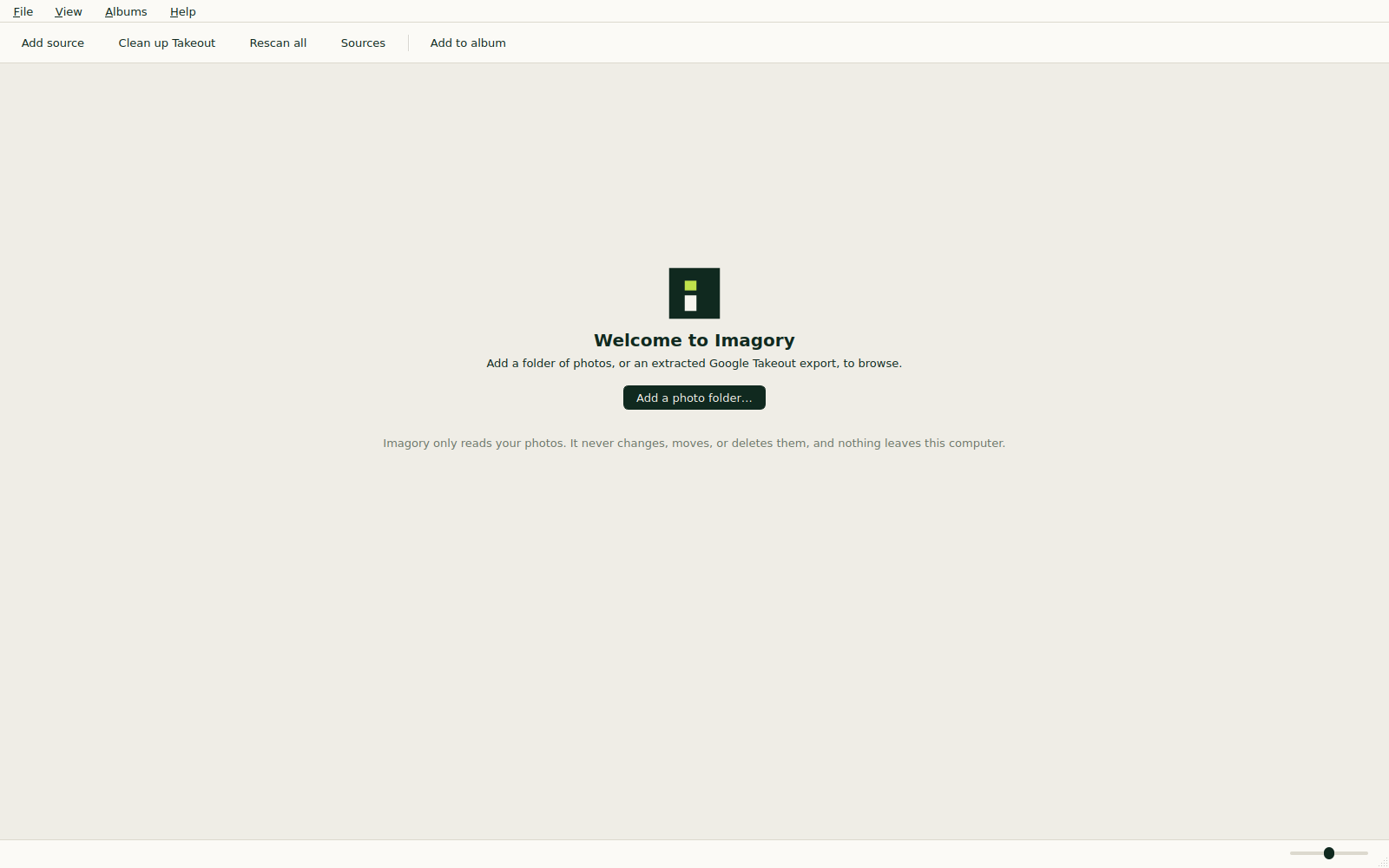
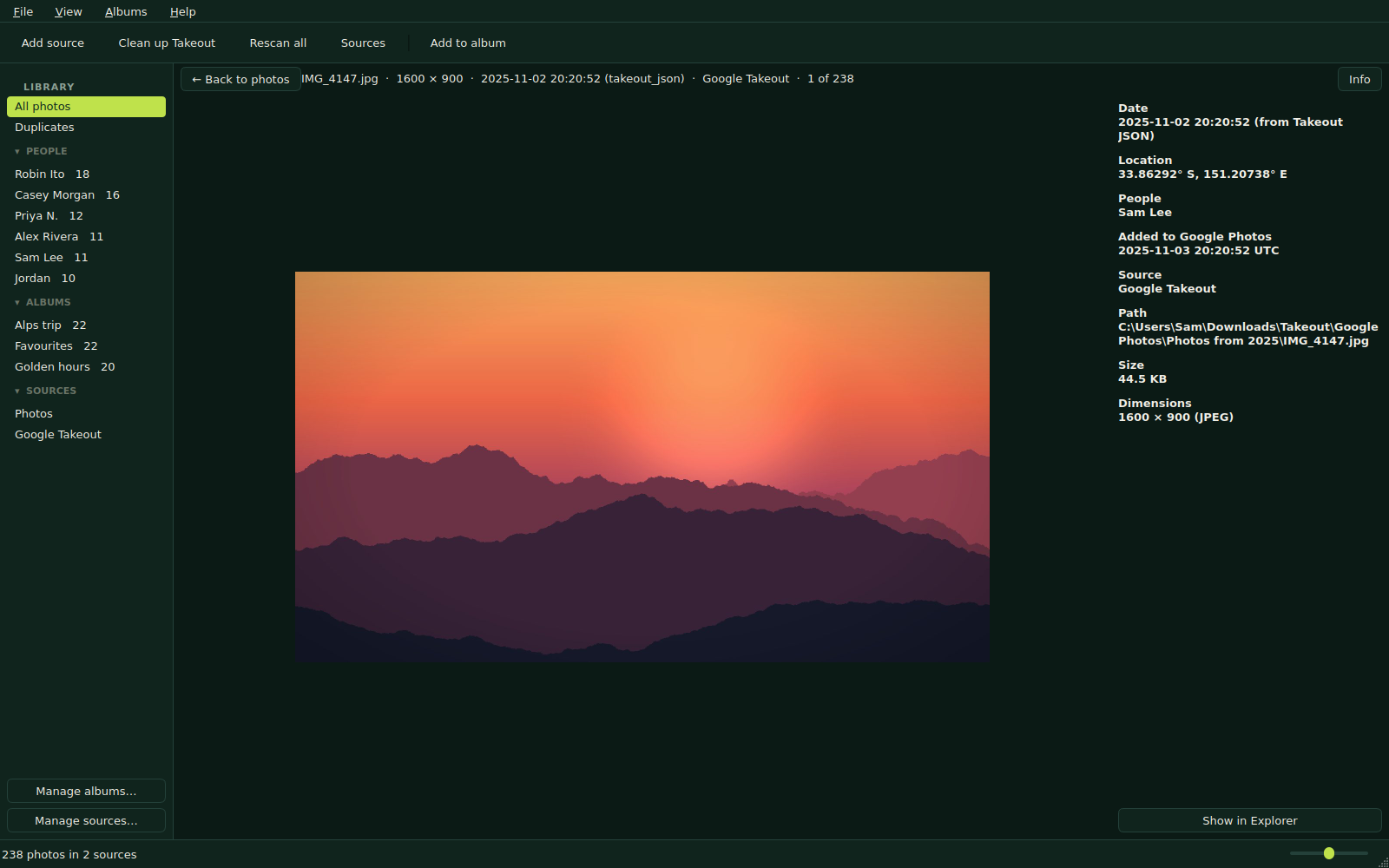
Add photo folders and extracted Takeout exports as sources. Imagory scans them in the background and shows everything in one grid, newest first.
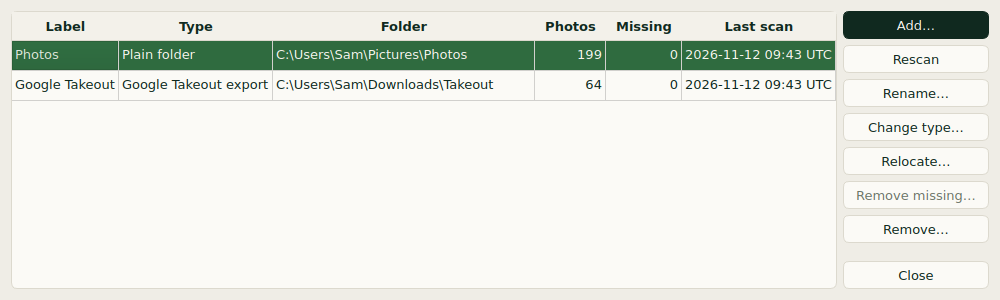
The first scan of a large library takes a while, so it runs in the background. After that, opening the library and rescanning it are quick.
| Task | Target | Measured |
|---|---|---|
| Photos in one scrolling grid | 100,000 | 100,000 |
| Open a scanned library to the first thumbnails | under 1 s | 0.22 s |
| Rescan 100,000 unchanged photos | under 1 min | 6.3 s (95,000 photos) |
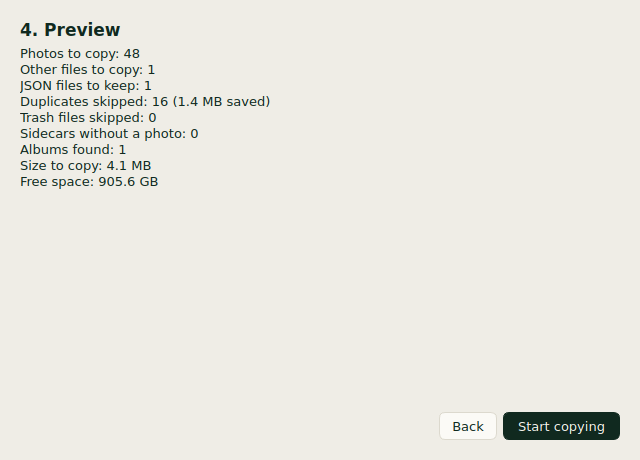
Takeout puts a JSON file next to every photo, copies photos into each album folder, and sets file dates to when you unzipped it. Clean up Takeout makes a sorted copy, one file per photo, in YYYY/MM folders. How it works
It writes into an output folder you pick.
Checked against the original before it counts.
Dates, places and people go into metadata.json.
The export is never changed. Deleting it is up to you.
Identical files appear once in the grid, wherever they are in your sources. Moved files are recognised.
From Takeout, from EXIF (with its time zone when known) or from the filename, such as IMG_20190131_235959.
Narrow the grid down by what you're looking for, including by person.
Group photos into albums. Albums from a cleaned Takeout come along too.
The names tagged in Google Photos, read from the export. Face recognition is planned for a future version.
Open any photo, zoom in, and see its date, place, people and file in the info panel.
A simple desktop app for people who want their photos on their own computer, without running a server. Other tools do more, such as face recognition today.
| Feature | Imagory | Immich and PhotoPrism | Google Photos |
|---|---|---|---|
| Setup | Download one file and run it | Run a server, usually with Docker | An account |
| Where your photos live | Your own folders, fully offline | Your server | Google's servers |
| Google Takeout | Built in, and several exports can be merged | Immich uses a separate import tool. PhotoPrism reads the JSON but not albums | The source of the export |
| Face recognition | Not yet, planned for a future version | Yes | Yes |
Version 0.2.1. No account, no sign-up, nothing to pay.
Imagory.exe
A single file. Double-click to run, nothing to install.
Download for Windowsv0.2.1Imagory-0.2.1-linux-x86_64.tar.gz
Unpack it, then run ./Imagory. Best effort: less tested than Windows.
Download for Linuxv0.2.1Windows may warn about an unsigned app. How to run it
Something else? More in the FAQ.
Yes. The app makes no network connections: no telemetry, no accounts, no update checks. Your photos, the database, the thumbnails and the logs all stay on your computer.
No. It only reads them. It never changes, moves, renames or deletes a photo, and never writes anything into your photo folders. Clean up Takeout writes copies only into an output folder you pick.
Not yet. Extract the zip files first, then add the extracted folder as a source. Zip support is planned.
Imagory releases are not code-signed, so Windows SmartScreen may say “Windows protected your PC”. Click More info, then Run anyway. Some antivirus tools also flag unsigned single-file programs. You can build it yourself from source instead.
In %LOCALAPPDATA%\Imagory on Windows and ~/.local/share/imagory on Linux. It holds the database, a thumbnail cache you can delete at any time, and the logs.
Not yet. Imagory does no face recognition today. The People section uses the names already tagged in Google Photos, read from the metadata in your Takeout export. Face recognition is planned for a future version.
Imagory is a simple desktop app: no server, no Docker and no account, and it reads Google Takeout metadata when you add an export. Those tools do more, including face recognition today, but they need more setup. See the comparison page for details.
Yes. Imagory can merge exports, for example from more than one Google account, into one tidy folder and library. Duplicates are matched against what is already there, so each photo is kept once. Your original exports are never changed.
Yes. Imagory is free and open source under the MIT licence. There is no account and nothing to buy.